
Connect Sensors and Instruments to Excel
Windmill software collects data from instruments and devices connected to your PC. We have a range of drivers for many types of equipment, and now offer our newsletter subscribers free software to log data from instruments connected over RS232, RS485, Modbus and TCP/IP. This means that you can connect these instruments to Excel.
Using Excel you could average readings over time or a number of sampling points; calculate control outputs; or put data directly into reports. You can collect data with the Windmill Logger trial or free ComDebug application, and after collection has finished import it into your Excel spreadsheet. Alternatively you can transfer live data, using dynamic data exchange.
Importing Logged Data into Excel | Acquiring Live Data in Excel | Excel Tips and Tricks
Importing Logged Data into Excel
The easiest way to get data into Excel is to open a logged data file after collection has finished. Windmill Logger can periodically close one data file and start another without pausing data collection, so no need to interrupt your tests or experiments to see the data.
- In Excel, from the File menu select Open.
- Select "All Files" as the file type.
- Choose your Logger *.wl file from the Windmill folder. (Or your WM Collect file if using the Microlink 840 Data Logger.)
- Excel will recognise this as a tab separated value file. Use the default options offered by the spreadsheet for importing the data.
- Save the data as an Excel file.
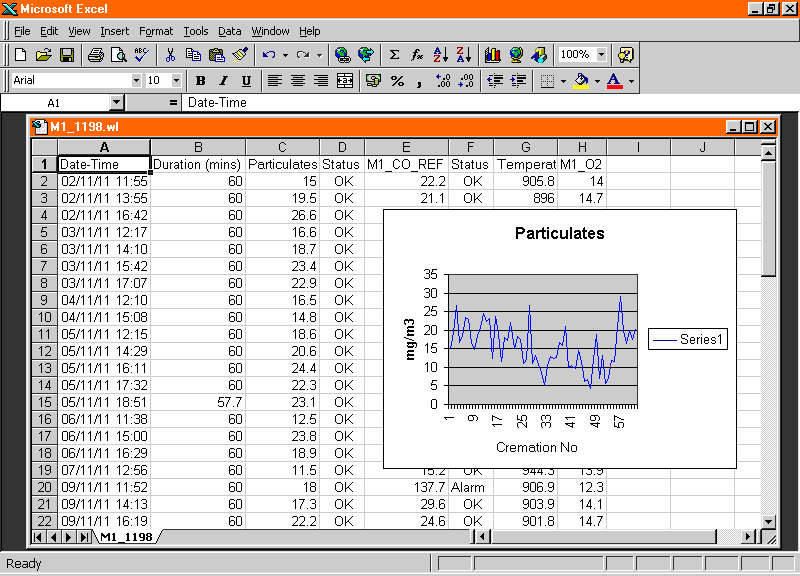
Example of data logged by Windmill being analysed in Excel
Acquiring Live Data in Excel
Windmill 7 lets you aquire live data in Excel using DDE. Just copy and paste data links which will continually update with live values. For more sophisticated tasks you can use a macro to grab data from Windmill. Some examples are given below
Copying and Pasting Live DDE Data Links
The Windmill DDE Panel lets you copy and paste live data into Excel.
- In DDE Panel, press the Copy to Clipboard button
- Choose the type of information you want to copy: data values, channel names, data units, alarm settings, etc.
- Move to Excel and select Paste Special from the Edit menu.
- Choose to paste as a link. Continually updating live data will appear in Excel.
For more sophisticated tasks, or to log live data in Excel, you can use macros.
Using Macros for Analysis and Control with Excel
Excel offers you analytical capabilities and lets you calculate control values to send back to the hardware.
To try out data acquisition into Excel
- Load Windmill DDE Panel and start collecting data from your instrument.
- Load Excel with a clean sheet, and then choose Record New Macro from the
Tools > Macro menu. Create an empty macro and then copy and paste the example macros given below into it.
We have three example macros. The first reads data from one channel, for example the current temperature reading. The second shows how to send data to an analogue or digital output. The third reads data from all instruments' channels.
Reading data from one channel
To read data from one channel called Chan_00 and place it into a cell in the spreadsheet, create the following VBA code. (A channel holds one type of data. For a laboratory scale, you might have one channel holding the current weight. For a GPS receiver you might have two channels: one holding latitude and one holding longitude.)
    ' Read data value from channel "Chan_00" in Windmill

    ' DDE Panel and write the result in cell A1

    Sub DDEread()


    ' Opens a DDE conversation with the Windmill DDE

    ' Panel using the Service Name "Windmill" and the

    ' Topic Name "data"

    ddeChan = Excel.DDEInitiate("Windmill", "data")


    ' Requests data from a channel called Chan00.

    myData = Excel.DDERequest(ddeChan, "Chan_00")

    Sheets("sheet1").Select

    Cells(1,1).Value = myData


    ' Closes the DDE conversation.

    Excel.DDETerminate (ddeChan)

    End Sub
Sending Data to an Analogue or Digital Output
To send data to an analogue or digital output channel, called 00006, create the following VBA code. (Note: You can send up to 7 characters. Values with more digits will be rounded up or down. For example 1.234569 will output as 1.23457.)' Send data in cell A1 to channel "00006" in ' Windmill DDE Panel Sub DDEpoke() ' Opens a DDE conversation with the Windmill ' DDE Panel using the Service Name "Windmill" ' and the Topic Name "Data" ddeChan = Excel.DDEInitiate("Windmill", "data") ' Now send the data. ' Note: a1 should be the cell or range of cells ' which contain the data, and 00006 should be ' the name of the output channel ' Excel.DDEpoke ddeChan, "00006", Range("a1") ' Closes the DDE conversation. Excel.DDETerminate (ddeChan) End Sub
Reading Data from All the Instruments' Channels
This macro repeatedly samples data from all the instruments' channels and stores the data in the Excel worksheet (by default Sheet 1). When the macro is run the operator chooses how many times to sample all the channels, and the interval between taking sets of samples. The macro loops until the required amount of samples have been collected. Make sure DDE Panel is running before starting the macro. You can quickly check DDE links by Copying them to Clipboard in DDE Panel and using Paste Special in Excel, before running the macro.
    Declare Sub Sleep Lib "kernel32" (ByVal

     dwMilliseconds As Long)


    Sub SampleData()

    'When the number of rows is equal to the number

    'of sets of samples requested, the macro will stop.

    'If NoOfRows = 1, the first data will be placed in row 1.


    NoOfRows = 1


    'Ask for number of sets of samples and sample interval.

    NoOfSamples = Val(InputBox("Enter how many samples to collect", "Samples"))

    SamplePeriod = InputBox("Enter sample interval in secs", "Sample Interval")


    ' Convert to milliseconds - needed for sleep statement below.

    SamplePeriod = SamplePeriod * 1000


    'Initiates conversation with DDE_Panel

    ddeChan = DDEInitiate("Windmill", "Data")


    'Keeps conversation open until the required number of samples

    'have been collected.

    While NoOfRows < NoOfSamples + 1


    'Requests data from all channels and stores it in

    'memory in an array called mydata.

    mydata = DDERequest(ddeChan, "AllChannels")


    ' Ignores any warnings generated

    On Error Resume Next


    'Finds the lower & upper boundaries of array, to determine the

    'number of columns needed to store the data.

    Lower = LBound(mydata, 1)

    Upper = UBound(mydata, 1)


    'Inserts data from the array into a row of cells in Sheet1.

    For Column = Lower To Upper

    Sheets("Sheet1").Cells(NoOfRows, Column).Value = mydata(Column)

    Next Column


    'Waits for the specified sample interval

    Sleep SamplePeriod


    'Increments number of rows,

    'so next set of samples is inserted in the next row down.

    NoOfRows = NoOfRows + 1


    'Stops loop when required sets of samples collected.

    Wend

    DDETerminate (ddeChan)

    End Sub
Another good macro for logging data, this time only logging when new data arrives, is given in Issue 56 of Monitor. Many more example macros are given in our Excel Tips and Tricks page.
Data Acquisition Example
In the example below Excel is reading data from the Windmill DDE Panel and storing it in cells B4 - B8. These cells are updated automatically whenever DDE Panel takes new samples, at which point Excel calculates the average and standard deviation and stores them in cells B10 and B11.


