
Capturing Data from an Ohaus Balance
Free ComDebug software logs data from Ohaus balances, and other instruments with an RS232 serial port, on a PC running Windows. All data is time-stamped and can be imported into Excel.
To use Windmill to capture data from a Ohaus balance: download the software then...
- Run the Windmill ComDebug, select Create a new Windmill Instrument File, and enter your balance's communication settings.
- Run the Windmill DDE Panel, Logger or Chart program to save or display data from your balance.
After you have entered your configuration settings with ComDebug, you don't need to use this again and can go straight to the logging and display programs.

Windmill continually captures data from Ohaus Balances
Using ComDebug to Enter Data about Your Ohaus Balance
For an overview of entering the configuration settings see the Getting Started with COMIML and ComDebug page. Specific example settings for an Ohaus Pioneer FX3000 balance and Ranger 3000 series are given below.
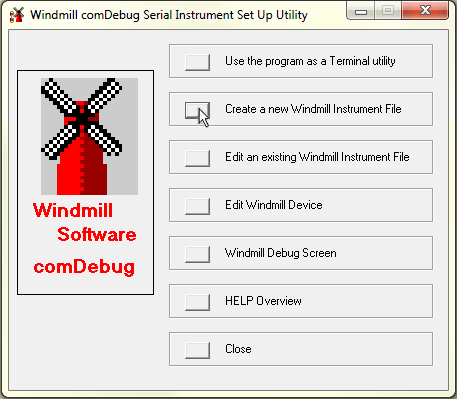
The opening screen. The first time you use ComDebug select
Create a New Windmill Instrument File. Subsequently, when you
have saved settings, select Edit an Existing Windmill Instrument File.
COM Port Settings
These must be the same as your balance uses. Check the Instruction Manual and see the RS232 menu option on your balance.
| Comm Port: | Select the port to which your instrument is connected. |
| Baud Rate: | Can be 600, 1200, 2400, 4800, 9600 or 19200: check which using the balance's RS232 menu (or for the Ranger 3000 series, the COM1 menu). Default is 9600 |
| Data Bits: | 7 or 8: check with the balance's Parity setting on the RS232 menu (or for the Ranger 3000 series, the COM1 menu). Default is 8 |
| Parity: | In ComDebug choose odd or even: check which using the balance's RS232 menu, Parity setting (or for the Ranger 3000 series, the COM1 menu). Default is none |
| Flow control: | Choose none, but make sure this is also selected at balance's RS232 menu (or for the Ranger 3000 series, the COM1 menu). Default is none |
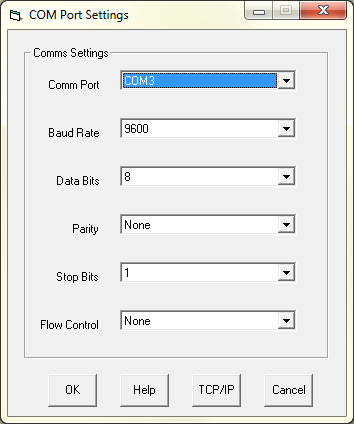
Choose Serial or Edit COM Port Settings to bring up this dialogue.
Fill in your settings then click OK
Data Format
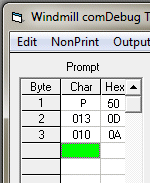
Choose Edit Message_1 from the Main Menu to bring up ComDebug's Message Screen. Enter a command or prompt string to send to the balance to ask for data. Click the Send button, and the instrument should send a reply (see Trouble-Shooting below if not). Now click the Parse button and enter instructions to extract the data from the balance's reply. Check your balance's Manual for details of the commands to send, and the format of the balance's reply. The example given below requests the stable weight. Use the non-print menu to enter the carriage return (<CR>) and linefeed (<LF>). (To request the immediate weight rather than the stable weight use IP rather than P.)
| Example prompt command: | P<CR><LF> P is upper case. |
| Data format: | ASCII |
| Example parsing: | Ignore Until +-0123456789 Extract Until space |
Instrument Timing
In the Main Menu choose Edit the Instrument Timings and enter these settings.
| Read: | Directly |
| Timeout: | 5000 ms |
| Instrument Idle or Wait Time: | 0 |
| Data Persistence Time: | 5000 ms |
Collecting Readings
In the Message Screen click Run to check that everything is working then select the File menu to save readings in a text file. Save your settings: from the Main Menu select Save .IMD file.
Further Information:
COM Port Settings
Pioneer Balances Instruction Manual
Ohaus Ranger 3000 Manual
Using Windmill Logger to Capture Data
The free ComDebug program might be all you need. However, if you want to connect more instruments, chart data, send data to Excel in real-time and so on, you can use the other Windmill programs. Run Windmill SetupIML to specify alarms, convert engineering units, etc. You can then collect and display data with Logger, Chart and DDE Panel.
- From DDE Panel's File menu select Load Hardware Setup and choose the *.ims file you just saved.
- Connect your weight channel. You should see the correct weight in DDE Panel.
- Proceed similarly for the Logger and Chart programs.
Getting the data into Excel
You can use the Windmill Logger or ComDebug program to collect data, and after collection has finished import it into Excel. Alternatively, you can collect data with Excel in real-time by using an Excel macro to read data from the Windmill DDE Panel or RTD server .
Trouble-Shooting
If you are unable to get data from your balance go back to ComDebug's Terminal or Message screen. Make sure your command is shown in the prompt grid. Click the Send button: does your instrument reply?
- If you only see your command being sent, and no data...
- Make sure that the balance is switched on and plugged into the PC's com (RS232) port.
- Check that the communication settings you entered in ComDebug match those currently in use by the balance: COM port, baud rate, parity, etc.
- If using a USB-RS232 converter, its settings must also match those used by the balance - read the USB-Serial page for details, especially point 7.
- If still no luck see our Testing Serial Port Communication page.
- If, in ComDebug you see data coming in but DDE Panel isn't showing it, you may need to edit your parsing settings. Go to ComDebug's Terminal or Message Screen, click the Parse button. Enter your Ignore and Extract Settings and click the Step menu. Is your data shown in the Value column? If not adjust your settings.
- If you are getting accurate data readings, but much slower than expected, change your sampling rate. With COMIML, Windmill can make 5 readings per second per channel. So it can record one weight measurement every 0.2 seconds. If you have the sampling interval set much smaller than this, then Windmill may slow down considerably and only make a couple of readings per minute.
Success?
Have you successfully used Windmill with your balance? Let us know about your project.

