Tips on Using USB-to-Serial Converters for Data Acquisition
Many instruments and devices can send data to a computer over serial RS232, RS485 or Modbus links. Driver software on the computer collects the data and makes it available to applications like Windmill Logger or Microsoft Excel. Windmill offers the COMIML universal serial driver, available on request. We also offer free software for simpler serial logging applications: ComDebug.
If you haven't any RS232 COM ports on your computer, you can use a USB-to-Serial converter to access data from your instruments.
The converters are simple to use but sometimes need careful setting up if they are to work properly. Here are some tips on using a USB-to-Serial converter.
- Plug the converter into the PC's USB port and install its driver software. If you don't have any driver software then check with the manufacturer.
- Windows will assign the USB converter a COM port. To find the COM port number open Windows Control Panel and choose first System then Device Manager then Ports. It will look something like
"USB serial port(Com X)", where X is the COM port
number assigned. (A question mark indicates that there is a problem with the drivers or the connection.)
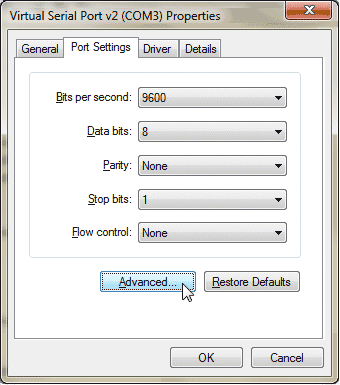
- You may find that Windows assigns your converter a COM port number that is higher than your software can handle. Windmill, for example, accepts COM ports 1 to 24. If the COM port number is too high, use Device Manager to reassign the COM port to a lower number. Select your converter and click Properties. Choose Port Settings then Advanced. Make a note of this number and the other settings listed: you will need to enter them in your data acquisition software.
- Windows may list all the lower COM port numbers as in use. This is not always so: look at the computer's actual COM ports physically available and you may find a lower port number.
- If your USB-Serial device is "designed for Windows" then it will have a unique serial number. Windows reads this and uses it to remember which driver and COM port number to use for that device. This means that when you unplug the converter, Windows continues to consider its COM port number in use. You can over-ride this with Device Manager. It also means that if you swap converters the port number assigned will be different.
- From the computer's perspective, the adapter is an active USB device: it will only be available, or listed as an option, when it's plugged in.
- When using a USB-Serial converter, you need to make
sure that it is providing data in the way expected
by your data acquisition software. The serial settings must be the same for the converter, your measurement device and the data acquisition software.
- To change the communication settings of the converter use Control Panel's Device Manager as detailed in point 3 above. To change these settings in Windmill use ComDebug's COM Port Settings box.
- If you have set your DAQ software to
continually acquire data you must make sure that your
USB-to-Serial converter is continually providing data,
and not buffering it. How you do this depends on your
converter. For an Edgeport converter, for example, you
need to use its utility program to set its ports for
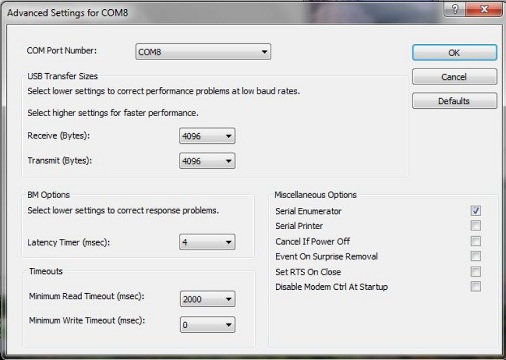
"low latency" and "fast read and writes". Alternatively you might need to use Windows Control Panel - choose device manager, Ports (COM), your USB-to-serial converter. Set the lowest latency and USB Transfer sizes as possible.
- If you need to implement a 2-wire RS485 system you should always obtain a USB-to-RS485 converter that advertises this special feature. An example type that we use is Moxa 1130. This unit automatically switches off the driver when there is no more data to send. Such a unit can work with general purpose software such as ComDebug or HyperTerminal. Beware though that it may not work with the special software supplied by instrument manufacturers which may assume a particular RS232- to-RS485 converter and may produce errors when used with any other unit.
Note: Some USB-Serial converters don't work under Windows 7 or 8. Check with your supplier.
Learn More
To find out more - or to ask our advice on your project - enter your details below.

