
Route Data from Transducers and Laboratory Instruments into OpenOffice or LibreOffice
Windmill software reads data from instruments and devices connected to your PC.
OpenOffice and LibreOffice are both open-source office suites and therefore free! From now on we'll just refer to OpenOffice, but unless stated the comments refer to both programs' Calc spreadsheets.
You can collect data with the Windmill Logger application, and after collection has finished import it into your OpenOffice spreadsheet. Alternatively you can transfer data as it arrives, using dynamic data exchange. To do this use the Windmill DDE Panel as a gateway to transfer data values between your instruments and OpenOffice.
Importing Logged Data into OpenOffice | Acquiring Live Data in OpenOffice | Comments
Importing Logged Data into the OpenOffice Calc Spreadsheet
- In the OpenOffice spreadsheet, choose Insert > Sheet from File. (If you choose File > Open, you may find Open Office uses the Write program rather than Calc to open the file.)
- In the File name box type *.wl and click the Open button. Your saved Logger data files are shown. Select one and click Open.
- You will see the Text Import dialogue. Select Tab and Comma and click OK.
- The logged file is shown with the data lined up in the appropriate columns.
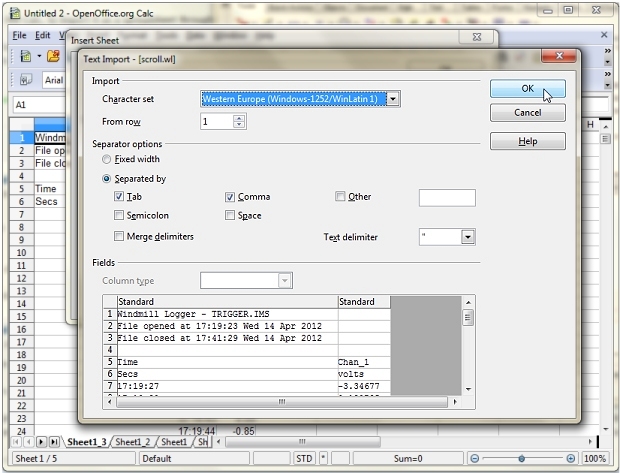
Importing logged files into Open Office
Acquiring Live Data in OpenOffice
The Windmill DDE Panel lets you copy and paste live data into OpenOffice. Just press the Copy to Clipboard button and choose the type of information you want to copy: data values, channel names, data units, alarm settings, etc. Move to OpenOffice, select Paste Special from the Edit menu and choose to paste as a link. The data in OpenOffice will continually update.
The code that will be inserted if you choose to paste All Channels is
{=DDE("WINDMILL","Data","AllChannels")}
and for one channel called Chan_00
{=DDE("WINDMILL","Data","Chan_00")}
To enter the formula by hand, do so as an array formula. Enter
=DDE("WINDMILL";"data";"AllChannels")
then press the Ctrl+Shift+Enter keys to tell Calc that it is an array formula.
For more sophisticated tasks, you can use macros.
Using Macros for Analysis and Control with OpenOffice
To try out data acquisition into OpenOffice
- Load Windmill DDE Panel and start collecting data from your instrument.
- Load OpenOffice with a clean sheet, and then select menu item Tools>Macros>Organize Macros>OpenOffice Basic
- Click the New button.
- To read data from one channel connected to the Windmill DDE
Panel and place it into a cell in the spreadsheet, create the
following code.
' Read data value from channel "00000" in Windmill
' DDE Panel and write the result in cell A1
Sub DDEread()

' Opens a DDE conversation with the Windmill DDE
' Panel using the Service Name "Windmill" and the
' Topic Name "Data"

dim ddeChan as string
dim myData as string
ddeChan = DDEInitiate("Windmill", "data")

' Requests data from a channel called 00000.
myData = DDERequest(ddeChan, "00000")
oCellRange = ThisComponent.Sheets.Sheet1.getCellRangeByName("A1")
	ThisComponent.CurrentController.Select(oCellRange)
	ThisComponent.CurrentSelection.FormulaLocal = myData

' Closes the DDE conversation.
DDETerminate (ddeChan)
End Sub
- To continually read data and write it into OpenOffice:
- Format the first column to show Time (Format menu > Cells > Time).
- Create an OpenOffice macro and copy the example macro below into it.
- Change the channel name (in our example 00001) to match yours.
REM  *****  BASIC  *****
Sub SampleData()


dim TimeCol as integer
dim DatCol as integer
dim NoOfRows as integer
dim FirstRow as string
dim NoOfSamples as integer
dim SamplePeriod as integer
Dim myData as string
Dim ddeChan as string

'When the number of rows is equal to the number
'of sets of samples requested, the macro will stop.
'If NoOfRows = 3, the first reading will be placed in row 4.
'If TimeCol = 0, the date and time will be placed in column A
'If DataCol = 1, the readings will be placed in column B.

TimeCol = 0
DataCol = 1
NoOfRows = 3


'Ask for number of sets of samples and sample interval (ms).
NoOfSamples = Val(InputBox("Enter number of samples", "Samples"))
SamplePeriod = InputBox("Enter sample interval in ms", "Sample Interval")

' Opens a DDE conversation with the Windmill DDE
' Panel using the Service Name "Windmill" and the
' Topic Name "Data"
ddeChan = DDEInitiate("WINDMILL", "Data")

'Keeps conversation open until the required number of samples
'have been collected.
While NoOfRows < NoOfSamples

'Requests data from a channel called "00001" and stores it in
'memory as mydata.
mydata = DDERequest(ddeChan, "00001")

'Selects first sheet in workbook.
Sheet = thisComponent.Sheets("Sheet1")

	'Writes the time and date
	Cell = Sheet.getCellByPosition(TimeCol, NoOfRows)
	Cell.Value = Now

	'Writes the data reading
	Cell = Sheet.getCellByPosition(DataCol, NoOfRows)
	Cell.Value = mydata

'Waits for the specified sample interval in milliseconds
Wait (SamplePeriod)

'Increments number of rows,
'so next set of samples is inserted in the next row down.
NoOfRows = NoOfRows + 1

'Stops loop when required sets of samples collected.
Wend
DDETerminate (ddeChan)


End Sub
More Tips on using OpenOffice (or LibreOffice) for Data Logging
- Using OpenOffice alongside the Windmill Logger program
- Highlighting alternate rows in the spreadsheet
- How to move a formula and keep identical references
- Customising how data is displayed depending on values
- Automatically resizing columns

